
You're welcome to use AI tools like Midjourney, ChatGPT, DALL-E, Gemini, or similar as part of your design process. Many customers use them for inspiration, concepts, and even final artwork. However, AI-generated images often need some preparation before they can be used for production. Here's why, and what you can do about it.
The challenge with AI-generated images
AI image generators typically output a single flat image file (JPG or PNG) with everything baked into one layer. This creates several challenges for production:
No editable layers. Colors, graphics, and text are all merged together, which makes it very difficult for our team to extract or adjust individual elements.
Text is not real text. AI renders text as pixels, not as actual editable fonts. We can't identify the font, adjust the spelling, or resize it cleanly. AI-generated text often contains subtle distortions that become visible in print.
Gradients and complex effects. AI frequently generates soft gradients, textures, and blending effects that are difficult to reproduce accurately in printing, especially on equipment and accessories.
Resolution and scaling. AI images may not be high enough resolution for large-format printing, and scaling a raster image up results in blurring or pixelation.
In short, we will always try our best to work with what you send us, but the closer your files are to production-ready, the better the result and the faster the turnaround.
How to get the best results with AI-generated designs
Use AI for inspiration, then rebuild for production
The most reliable approach is to use AI to develop your concept and layout, then recreate the actual production design using proper design tools (or let our team do it through the Free Design Service). Send us the AI image as a reference, and we'll work with you to reproduce it as closely as possible using production-ready methods.
Try this prompt template with your AI image tool
When generating images with AI, the way you prompt makes a big difference in how production-ready the output is. Here's a template you can adapt for your needs:
Design a [product type] graphic in a flat vector illustration style. Use solid, clearly defined colors: [your color 1], [your color 2], [your color 3]. The design should feature [describe your main graphic elements, e.g., "a roaring tiger face" or "abstract geometric shapes"]. Keep the background transparent or a single solid color. No text, no gradients, no soft shadows, no photorealistic textures. Clean edges, high contrast, suitable for print production at high resolution.
Example (padel racket):
Design a padel racket graphic in a flat vector illustration style. Use solid, clearly defined colors: black, gold, and white. The design should feature an aggressive geometric pattern with a lion head silhouette as the centerpiece. Keep the background transparent. No text, no gradients, no soft shadows, no photorealistic textures. Clean edges, high contrast, suitable for print production at high resolution.
Key phrases that help AI tools produce cleaner output:
"flat vector illustration style" or "flat design style" keeps colors solid and edges clean
"no gradients, no soft shadows" prevents blending effects that are hard to print
"no text" keeps text out of the image so you can provide it separately as real editable text
"transparent background" makes it easier to place the graphic onto a product template
"high resolution" or "4K" ensures the output is large enough for printing
"suitable for print production" helps some AI tools optimize for cleaner output
This is a starting point, not a formula. AI tools are evolving quickly and different tools respond to different prompting styles. We encourage you to experiment with prompting techniques and try different approaches to see what produces the cleanest output for your specific design idea.
After generating your image:
Save the best version as a high-resolution PNG
If possible, run it through a vector conversion tool like Vectorizer.ai or Adobe Illustrator's Image Trace to create an SVG version
Send us the image along with your text, font preferences, and color codes as separate information
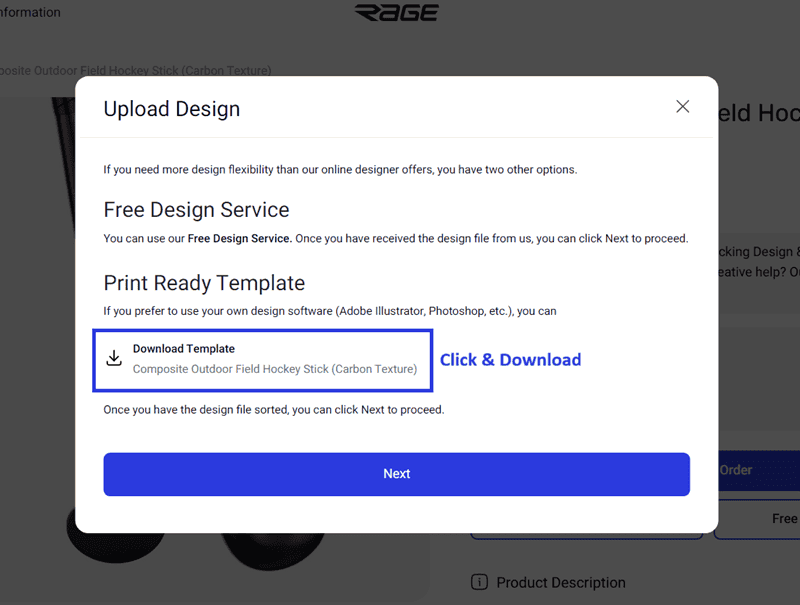
Download our product template and place your graphic into it if you can, or just send everything to our team through the Free Design Service and we'll handle the placement
Explore AI-powered design workflows
The AI design space is moving fast, and there are increasingly powerful tools and workflows that can help you go from an AI concept to a production-ready file. Some worth exploring:
Recraft.ai can generate vector (SVG) output natively, which is significantly more production-friendly than standard AI image generators that only output raster images.
Figma with AI plugins offers workflows where you can use AI to generate design elements and then refine them within a professional design environment. Figma's growing ecosystem of AI-powered plugins can help with tasks like background removal, vectorization, and color palette extraction.
Claude with MCP (Model Context Protocol) integrations can connect directly to design tools like Figma & Canva, allowing you to use AI to generate, iterate, and refine designs within a structured workflow. If you're comfortable with AI tools, this is worth exploring for more complex design projects.
Claude Code can be used to generate SVG graphics programmatically, which produces inherently vector output that's clean and scalable for production.
Vectorizer.ai and Adobe Illustrator Image Trace can convert raster AI output into editable vector files.
These tools and workflows are constantly improving. We encourage you to experiment and find what works best for your design process. The goal is to end up with clean, layered, high-resolution output that our production team can work with.
Separate your elements into individual layers
If you want to use AI-generated artwork directly, break it down into separate files before submitting:
Background/base colors as one layer (use solid, flat colors where possible)
Graphics, logos, and illustrations as separate PNG files with transparent backgrounds
Text provided separately as actual editable text. Tell us the font name, size, and color you want, rather than including AI-generated text in the image. If you don't know the exact font, describe the style and we'll find a match.
Use our templates as a base
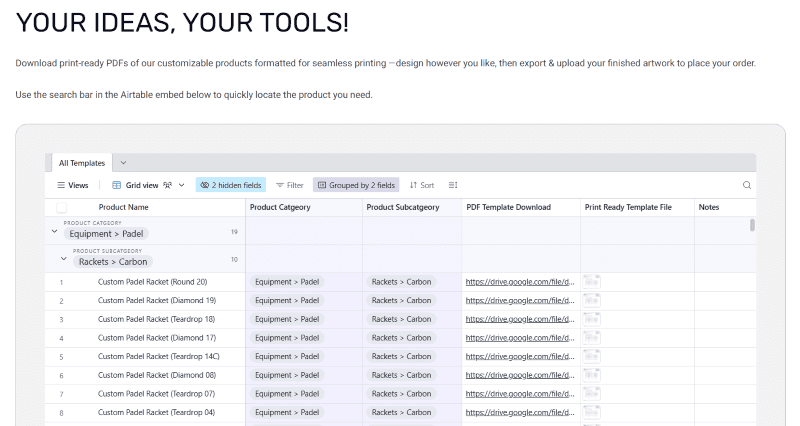
Download the blank template for your product and place your AI-generated elements into the template using design software. This ensures everything is sized and positioned correctly for the product. Even a rough placement helps our team understand your intent.
Keep colors simple and solid
Printing works best with solid, clearly defined colors. If you're generating a design with AI, try to prompt for flat colors, clean edges, and minimal gradients. This makes it much easier for our team to match colors accurately in production.
What to send us
If you're using AI-generated artwork as part of a Free Design Service request or uploading it with your order, include:
The AI-generated image(s) as reference
Any separated elements (graphics, logos) as individual files if possible
All text as written text (not as part of the image), with font preferences noted
Any specific color codes or Pantone references
Notes on what's important to preserve vs. what our team can interpret freely
The more context you give us, the closer the final product will be to your vision.
We'll work with you
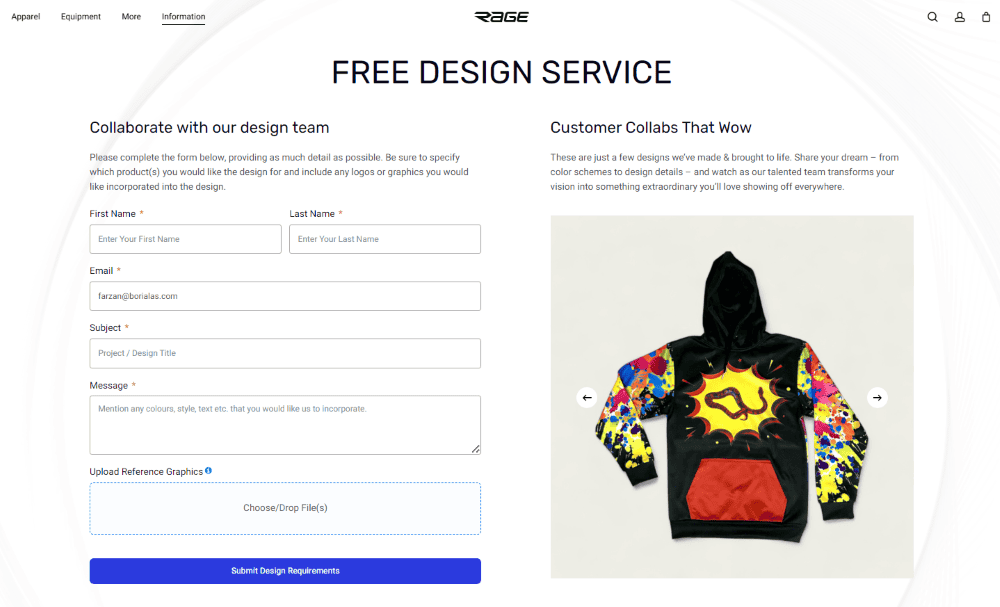
Even if you send us a single AI-generated image with no separation, our team will do our best to recreate the design for production. Just be aware that complex gradients, AI-rendered text, and intricate blending effects may need to be simplified or adapted for the printing process. We'll always check with you before making significant changes.
→ How does the Free Design Service work? → What file formats should I use when uploading a complete design? → What parts of the product can I customize?