
The online design tool is built into every product page and lets you create a custom design directly in your browser. No downloads or design experience required.
Getting started
Browse to the product you'd like to customize.
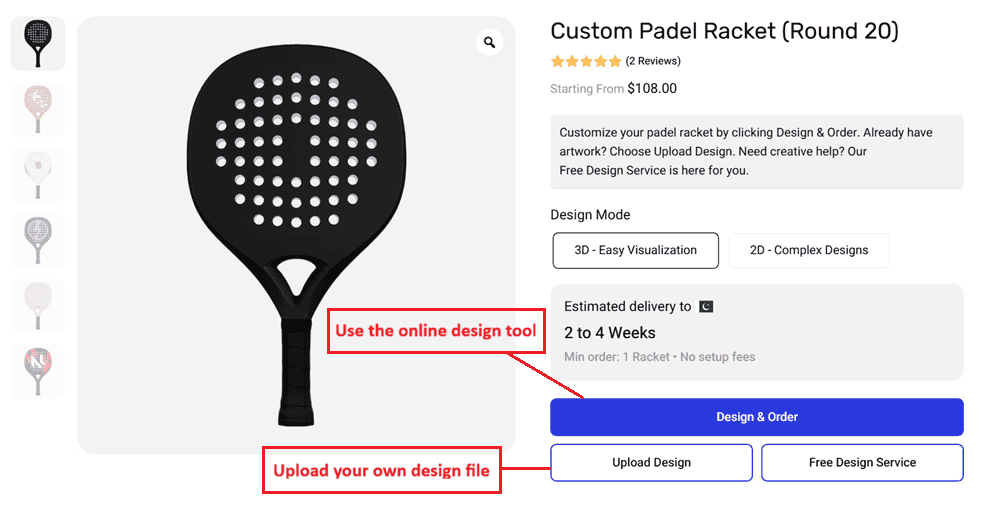
Click Design & Order to open the design tool.
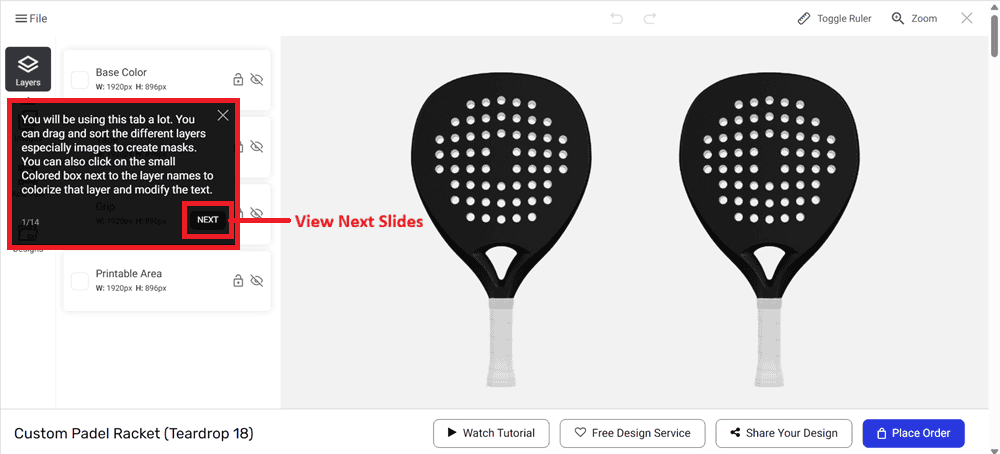
A Guided Tour will walk you through the features the first time you use it.
What you can do in the tool
Change colors: Use the Layers panel to change the base color and individual parts of the product (such as tape, grip, or body panels, depending on the product).
Add text: Double-click on existing text or use the Add Text tab. You can change the font, size, style, and color. Text can be added to multiple sides of the product.
Upload images and logos: Go to the Add Image tab and drop your image files into the upload area, or click to browse. You can also search for images using the built-in Pixabay integration. For details on accepted image formats and size limits, see What image formats can I upload in the online design tool?
Preview your design: Use the Preview button in the top menu to see a realistic rendering of your finished product.
Save or share: Use Save/Load Designs to save your progress, or click Share Design to generate a unique link you can send to teammates or collaborators. See Can I share my design with my team? for more details.
Choosing a Design Mode
Before you start designing, you'll choose between 3D and 2D mode. See What is Design Mode, and should I choose 3D or 2D? for guidance on which to pick.
This is different from Upload Design
The online design tool is for building your design in the browser. If you've already created a complete design file using professional software like Adobe Illustrator, Photoshop, or CorelDRAW, you should use the Upload Design option on the product page instead. See What file formats should I use when uploading a complete design? for details.
Need help?
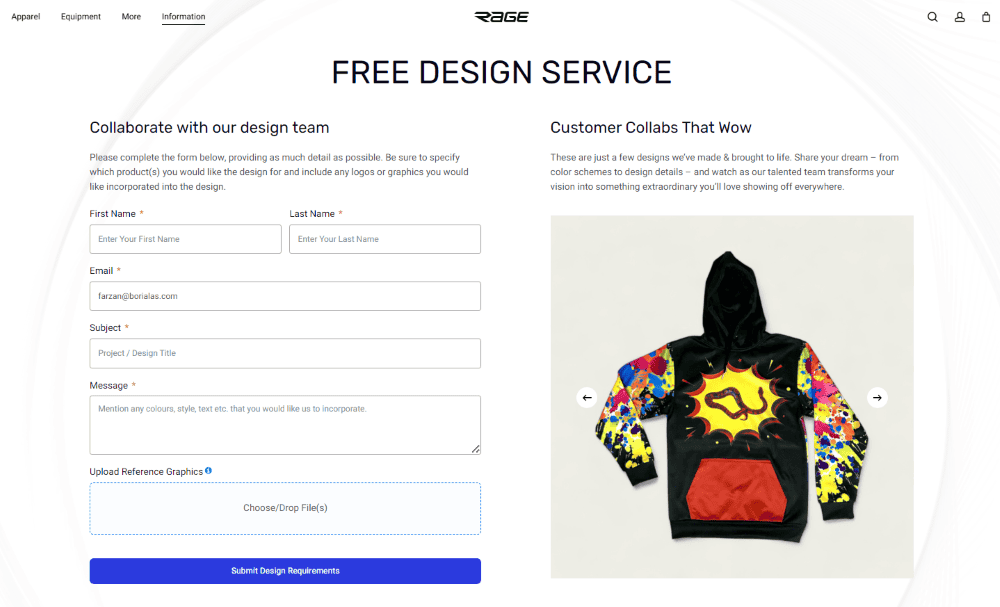
If you run into any issues while using the design tool, you can start a live chat session by clicking the chat icon on the bottom left of the page, or contact us through any support channel. You can also use our Free Design Service if you'd prefer our team to handle the design for you.
For a more detailed walkthrough with screenshots, see our Design Tool Tutorial on the RAGE Custom blog.